

Troubleshooting Services
Important information about how to troubleshoot your services.
Boost WiFi 6 Router
Restart your Internet modem or gateway
Step 1: Locate your modem or gateway
You can typically locate your modem or gateway near a telephone jack, near an electrical panel, or in the equipment/utility room. It should resemble this model:
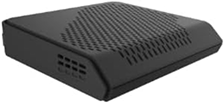
Step 2: Restart your modem or gateway
If there’s an issue with the connection, you will see a red light on WAN or Alarm on the modem or gateway. If you have a separate router, make sure it is on and connected to the modem through a network cable to the WAN or GIGE port of your router, depending on the modem you have.
Warning: Moving or unplugging the fibre terminal may involve manipulation near your electrical panel. Please be careful to never touch your electrical panel
- To restart your modem press the black on/off button located on the right side of the terminal.
- Wait 1-2 minutes for your terminal to reboot. Once fully rebooted, you will see a green power light and a green LAN 1 light.
- Unplug the modem or gateway’s power cable, wait 30 seconds, and reconnect it.
- Once restarted, the modem or gateway will take 2 minutes to reboot.
- After restarting, verify that you are connected to your local network, then test your connection by launching your browser. Make sure that a network cable is connected to one of the LAN ports of the modem (1-4) and to the LAN port of your PC.
How to factory reset
- Factory reset the Boost Wi-Fi 6 Router. Press and hold the factory reset button for 3-5 seconds.
- The LED will flash red to indicate that a factory reset has occurred. Wait until the light returns to a solid green.
- Network name and admin password are on the bottom of the device below the removable bae.
How to enable Guest SSID
- Access the router's Graphical User Interface (GUI):
- GUI:
- Use Boost Wi-Fi 6 Router’s default IP address, 192.168.1.254.
- Enter IP address into browser window, use login info located on sticker (remove bottom housing, it’s on the same sticker as the LED information) to access Boost Wi-Fi 6 Router GUI.
- Insight (RouteThis):
- Locate the IP address for the Boost Wi-Fi 6 Router in Insight.
- Enter IP address into browser window, use login info located on sticker (remove bottom housing, it’s on the same sticker as the LED information) to access Boost Wi-Fi 6 Router GUI.
- GUI:
- Click on the Wi-Fi option on the Left menu.
- Click on Guest network along the top.
- On the Status drop down menu select Enabled, click on save.
Ports
| Port/Button | Description |
|---|---|
| WPS Button | Pressing this button for 10 seconds will activate the WPS connection. When this happens, the LED on the front of the Boost Wi-Fi 6 Router will flash purple. |
| Power adapter port | This is where the power adapter is connected. |
| Coax port | Coax port is disabled on the Boost Wi-Fi 6 Router. A white rubber cap is added to cover the port from being used. |
| 2.5G | To be connected to Sercomm DM1000 Cable Modem. (acts as WAN port) |
| Ethernet port 1 and 2 | Ethernet ports that support up to 1G speeds. |
| Factory Reset | Pressing this button will resort the unit to its factory default settings. For steps, see Boost Wi-Fi 6: How to factory reset. |
LEDs
| Light | Description |
|---|---|
| No light | Your Boost Wi-Fi 6 Router is turned-off
|
| White | Your Boost Wi-Fi 6 Router is starting up
|
| Green | Your Boost Wi-Fi 6 Router is online
|
| Green flashing | Your Boost Wi-Fi 6 Router is updating
|
| Purple flashing | Your Boost Wi-Fi 6 Router is updating the firmware
|
| Amber | One of your Wi-Fi bands are off
|
| Red | Your Boost Wi-Fi 6 Router can’t connect to the internet
|
| Red flashing | Your Boost Wi-Fi 6 Router is factory resetting
|
Reset your H268A Home Gateway to factory settings
As a last resort, you can reset your home gateway device to its original factory settings when all other Internet troubleshooting has been exhausted.
Resetting your modem to its factory settings will erase all customized information such as Wi-Fi network names and passwords. To reset your ZTE H268A Home Gateway to its original factory settings, follow these steps:
- From the back of your device, locate the Reset button hole. It can be found between the WPS and WLAN buttons.
- Using a thin object, such as a toothpick or pin, press and hold the reset button for at least 30 seconds.
- Release the reset button.
- Your device will restart automatically.
Your ZTE H268A Home Gateway is now restored to its original factory settings.
Test your internet speed
When your Internet speed does not appear as fast as you would like, you can test it to ensure your Internet connection is working properly.
What you need to know
Some valuable information and tips before you get started:
- Attaining at least 80% of the speed featured with your Internet plan is considered acceptable.(For example, your Internet plan features 50 MBps download speed, but you are attaining an actual download speed of 40 MBps.)
- Ensure the length of your cables (RJ45 and RJ11 or coaxial cables) does not exceed 6 feet
- Clearing your browser’s cache and cookies can often resolve speed-related issues.
- If you are using a Wi-Fi TM Internet connection, test your Internet speed on a computer using a wired Internet connection.This is the most accurate way of determining your actual Internet speed. It will also help you to determine if your speed issues are related to your Internet service, or your home Wi-Fi network.
- Wi-Fi Internet connection speeds are typically slower due to multiple environmental factors that can interfere with your Wi-Fi signal, such as:
- Cordless phones in your home that may use a similar frequency
- Physical distance between your device (i.e. laptop, tablet or smartphone) and your modem
- Electromagnetic appliances in your home, such as a microwave oven
- Living in a densely populated area such as an apartment building, where multiple Wi-Fi networks may exist.
Getting started
If you would like to accurately test your Internet speed when you find it slow, do the following:
- Using a wired Internet connection, launch your Web browser.
- Navigate to www.speedtest.net
- Click Go. The speed test begins.
NOTE: The test may take up to one minute.
Your download and upload speeds are displayed.
Connect to your home Wi-Fi network with Mac OS X
To connect to your home Wi-Fi network using Mac OS X, do the following:
- From the right side of the top taskbar, click the Wi-Fi icon.
NOTE: This icon is typically located next to the Volume icon. - If Turn Wi-Fi On is displayed, click on it. If not, skip to the next step.
- From the list of available Wi-Fi networks, select the network you want to join.
- When prompted, enter the Password for your Wi-Fi network
NOTE: If you do not know your Wi-Fi network password, learn how to find it. - Click Join. Your computer attempts to connect to the selected W-Fi network. This may take a few seconds.
- Once connected, black stripes appear on the Wi-Fi icon located in the top taskbar.
Your computer is now connected to your home Wi-Fi network.
Connect to your home Wi-Fi network with Windows 10
To connect to your home Wi-Fi network using Windows 10, do the following:
- From the bottom-left corner of your screen, click the Windows icon. The Windows application menu is displayed.
- Click the Settings icon. The Windows Settings menu is displayed.
- Select Network & Internet. The Network Status window appears.
- From the left pane, select Wi-Fi.
- Ensure the Wi-Fi toggle switch is set to On. If it isn't, click it.
- Select Show available networks. A list of available WI-Fi networks is displayed.
- Select the desired Wi-Fi network, then click Connect.
- When prompted for the network security key, enter the password for your Wi-Fi network. NOTE: If you do not know your Wi-Fi network password, learn how to find it.
- Click OK. Your computer may take a few seconds to connect to your network.
Your computer is now connected to your home Wi-Fi network.
Connect to your home Wi-Fi network with Windows 8
To connect to your home Wi-Fi network using Windows 8, do the following:
- From your keyboard, press the Windows key + C.
- Click Settings.
- Click the Wireless icon.
- Select the Wi-Fi network you want to join.
- Click Connect.
- When prompted for the network security key, enter the password for your Wi-Fi network.
NOTE: If you do not know your Wi-Fi network password, learn how to find it. - Click Next.
- Click Yes.
Your computer is now connected to your home Wi-Fi network.
I forgot my home Wi-Fi network password
By default, your ZTE H268A Home Gateway features two preconfigured home Wi-FiTM networks (one uses 2.4GHz frequency and the other uses 5GHz).
Your home Wi-Fi network name (WLAN SSID) and password (WLAN Security) for each network are printed on a sticker located on the back of your home gateway.
If you have customized your secure home Wi-Fi network name and password and cannot remember the password, complete these steps while using a wired Internet connection:
- Launch your Web browser. From your taskbar, select File and then Open
NOTE: If your browser taskbar is not displayed, press Alt on your keyboard. - Enter 192.168.1.1 and press Enter (Return on Mac). The Log In screen is displayed.
- To log in, type the following information:
- Username: User
- Password: ZTEUser2016
- Click Login. The Home screen is displayed.
- Click WLAN Setting. The WLAN Basic page is displayed.
- Select WLAN SSID Configuration, then locate and click on your active Wi-Fi networks.
NOTE: You can easily identify your active Wi-Fi networks by looking for the On. radio buttons displayed next to them. - Locate the WPA Passphrase field. Your Wi-Fi network password is displayed.
Your home Wi-Fi network password is recovered.